Introduction
Every business has the same big question at the back of their mind: what’s going to happen next? Whether you’re planning inventory, expecting a slow season, or gearing up for a busy month, you need some kind of direction. The good news is you don’t need a data science team to get it. Excel now gives you a simple, one-click way to predict future trends using the data you already have. And the best part? It’s fast, accurate, and surprisingly easy to use.
How Excel Figures Out Future Number
Behind that one button, Excel is actually doing some pretty advanced math. It uses something called the ETS algorithm, which basically means it studies your past numbers, notices patterns, and then projects where things are likely heading. If your sales usually rise every December or dip every summer, Excel picks that up automatically and builds it into your forecast. What used to take hours of formulas now happens in seconds.
Starting With Clean, Time-Based Data
Excel can only predict well if your data is organized well. All you need is a column with dates and a column with the values you want to forecast, like sales, expenses, stock levels, or visitors. Excel scans everything, fills in missing points, smooths out noise, and prepares it for forecasting. You don’t need to clean it manually or do anything complicated.
One Click That Builds a Full Forecast Sheet
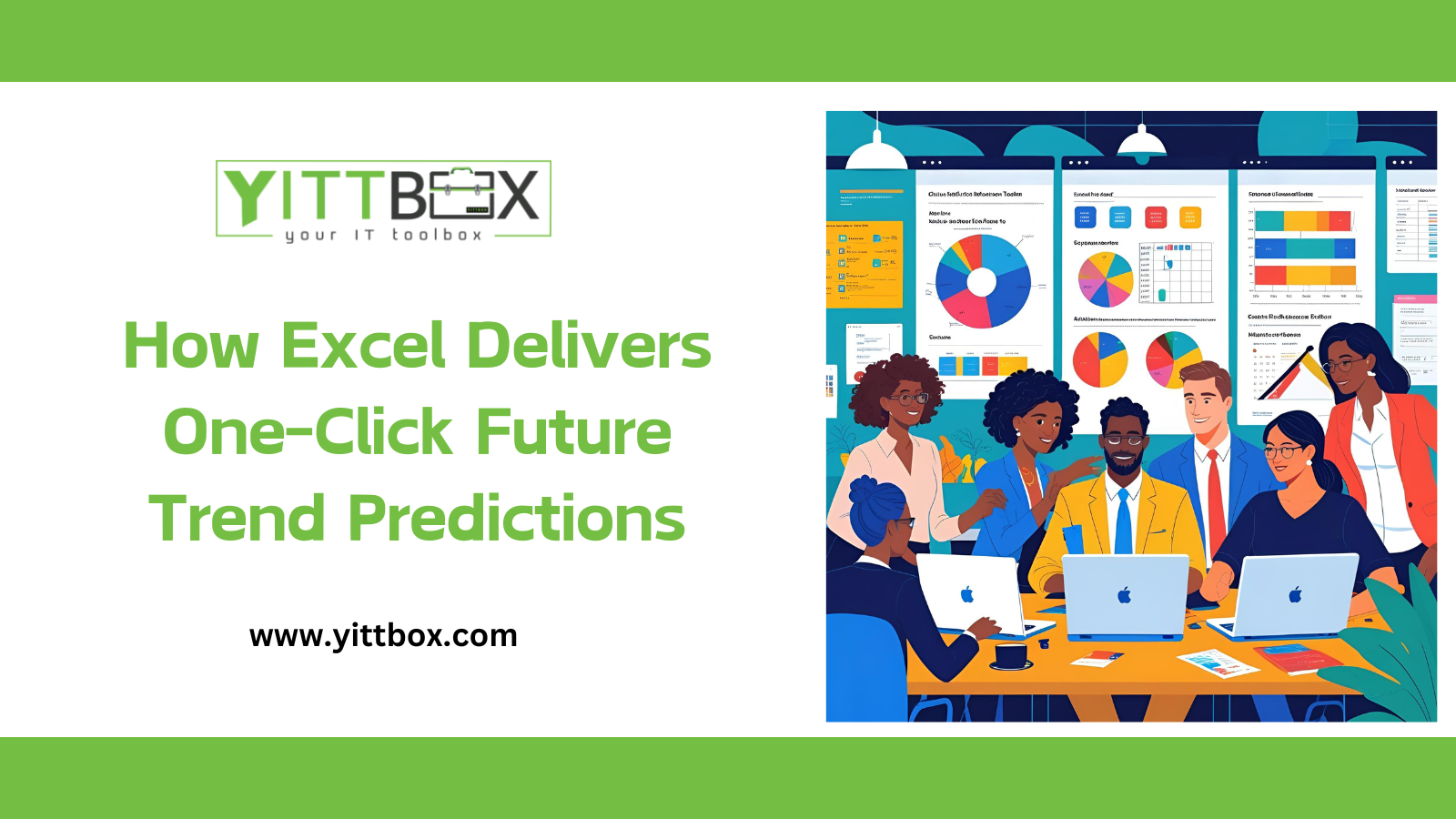
Once your data is highlighted, you hit Forecast Sheet, and Excel instantly gives you a full, ready-to-read forecast. You’ll see a chart that shows the direction your numbers are heading, plus future values and a range of possibilities. It’s clean, visual, and perfect for sharing with your team, clients, or management without doing any extra work.
What the “Shaded Area” Actually Means
You’ll notice a shaded band around the forecast line. That’s the confidence interval, basically Excel saying, “your numbers will most likely fall somewhere inside this range.” It’s a realistic way to see best-case and worst-case scenarios so you’re not blindsided by unexpected changes.
Custom Options Without the Complexity
If you want more control, Excel gives you that too. You can adjust seasonality, forecast length, or even the smoothing settings. But if you don’t want to touch any of that, the default one-click option works perfectly for most real business scenarios.
Where Businesses Use This Tool
The thing about Excel forecasting is that it fits everywhere.
Retail stores use it to plan inventory.
Service businesses use it to prepare staffing levels.
Finance teams check upcoming cash flow.
Manufacturers track production or demand.
Even small businesses use it just to get a clearer picture of what’s coming.
It removes the guesswork and replaces it with actual, data-driven direction.
Why This Feature Matter
Years ago, forecasting was something only analysts or data experts could do. Today, Excel puts it in the hands of anyone who works with numbers. You don’t need formulas. You don’t need coding. You don’t need a complicated dashboard. Just one click and you get insights that help you make smarter decisions.
Conclusion
Excel’s one-click forecasting feels like having a small built-in prediction tool right inside your everyday spreadsheet. It’s simple, approachable, and incredibly helpful for businesses trying to plan ahead with confidence. With the right data and a single click, you can see what’s coming next, and make better decisions because of it.
Comments
Be the first to comment on this post.